Not every entrance needs an intercom. A Command Unit is a 4G dialler that controls access without re…
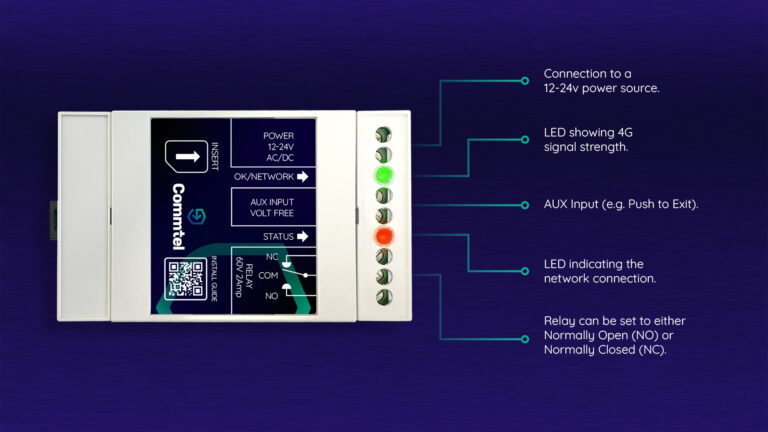


A flashing red LED on the PCB can indicate either a battery issue or a full SMS cache. Both can affect normal operation and should be investigated before commissioning or fault finding continues.
Some Commtel products use an onboard lithium battery to maintain system functions. If this battery has failed, the PCB may indicate a fault using the red LED.
To check the battery:
Measure the battery voltage using a multimeter
The battery should read at least 3V DC
If the reading is below 3V or there is no voltage present:
Commtel ML and Optimus products use a replaceable CR1220 3V battery
On Commtel HY-CAN products, the battery is soldered to the board and the PCB may need to be returned for repair or replacement
A flashing red LED can also indicate that the SMS memory is full.
This is often caused by network-generated messages, such as marketing texts or service notifications, being stored on the SIM. Once the memory becomes full, the intercom may experience communication issues.
The SMS cache can be cleared using one of the following methods:
For units with a keypad
Enter: 5787 followed by the unit serial number.
Once in the menu, enter the following sequence:
4* (wait for a second)
8* (wait for a second)
8* (wait for a second)
3* (wait for a second)
Repeat 3* to perform an additional clear
Press * five times to exit the menu.
For units without a keypad
For Commtel HY-CAN products without a keypad, the same process can be carried out over the phone.
Call the telephone number of the SIM installed in the unit
Once the unit answers, enter the same sequence shown above
Via SMS
For units running firmware version 1.83 or above, the cache can also be cleared by SMS.
Send the following text message to the unit:
87serial.4.8.8.3
Replace serial with the unit’s 6-digit serial number.
Once cleared, we recommend contacting the network provider and requesting that network-generated SMS messages are disabled to help prevent the issue from reoccurring.
If you are unsure whether the issue is related to the battery or SMS storage, contact our technical support team for assistance.
DTMF tones are used to activate relays during a call. If the tones are not being recognised, callers may be able to answer the intercom but be unable to open the gate, barrier or door.
Before contacting technical support, carry out the following checks:
If the intercom is calling a mobile phone, ensure Wi-Fi Calling is disabled on the receiving device.
Wi-Fi Calling can sometimes alter the way DTMF tones are transmitted, preventing the intercom from recognising them correctly.
Network faults or degraded call quality can affect DTMF performance.
If possible, test the unit using a SIM from a different network to determine whether the issue is network related.
On landline-based systems, audible noise or interference on the telephone line can prevent the intercom from detecting DTMF tones reliably.
If interference is present, contact the line provider and request a line test.
Many digital telephone services may not reliably support DTMF signalling.
If the customer uses a digital household phone service, we recommend using a mobile phone as the primary call destination instead of the landline.
If these checks have been completed and the issue remains, please contact our technical team.
If visitors are pressing the call button but the intended recipient is no longer receiving calls, there are several checks that should be carried out before further fault finding.
Many smartphones now include features that automatically screen, silence or block calls from numbers that are not recognised by the device.
If the intercom’s telephone number is not saved in the user’s contacts, calls may be filtered, sent directly to voicemail or hidden from notifications, depending on the phone’s settings.
Check that the intercom’s telephone number has been saved in the recipient’s contacts and ask the user to review any call screening, spam filtering or unknown caller settings on their device.
This can become an issue following smartphone software updates or when users change devices, as call handling settings may differ from their previous setup.
If the intercom uses a pay-as-you-go (PAYG) SIM card, ensure sufficient credit remains available.
An intercom with no available credit will be unable to place outgoing calls, even though the unit itself may still appear to be functioning correctly.
For example, the panel may power up normally, relay operation may still function, and programming may still appear intact, while visitor calls fail because the SIM can no longer make outbound calls.
Checking SIM credit early in the fault-finding process can help avoid unnecessary troubleshooting elsewhere in the system.
Check whether the intercom’s telephone number has been added to the recipient’s blocked numbers list.
If the number has been blocked, calls from the intercom will not be presented to the device.
If the intercom number has been saved in the user’s contacts and the checks above have been completed, further investigation may be required.
Contact our technical support team with the intercom serial number and details of the issue, including whether the problem affects all recipients or specific users only.
If a SIM is inserted while the intercom is powered on, the unit may not detect it correctly.
Before fitting a SIM:
Turn off power to the intercom
Insert the SIM card
Restore power once the SIM is fully inserted
If the SIM is still not detected, check:
The SIM has been activated by the network provider
The SIM has been inserted in the correct orientation
You’re using a Micro SIM for our 4G and IP products. Older 2G models required a standard sized SIM.
The SIM is not on any of the following networks: Three, Sky, Spusu.
There is adequate signal coverage at the installation location
A signal test is recommended before installation to help identify any connectivity issues before commissioning begins.
Temporary network outages, maintenance work or local service disruptions can affect call performance, connectivity and remote programming.
Before investigating the intercom itself, check whether the mobile network is reporting any known issues in the area.
Network status checkers:
A mobile phone is not always a reliable indicator of how an intercom will perform at the same location.
Mobile phones are designed to move between network masts. Intercoms are fixed in one location and must operate using the signal available at that specific mounting position.
As a result, a phone may appear to have a strong signal while the intercom experiences weaker or less consistent connectivity.
This is why we recommend carrying out a site signal survey before installation using a dedicated signal analyser. Identifying the strongest network and the best antenna location before mounting the equipment can help avoid unreliable communication, commissioning delays and unnecessary return visits.
If the intercom is already installed, connecting the antenna to a signal analyser can help assess signal conditions and determine whether a different network or antenna position would provide better performance.
Signal strength can affect how reliably an intercom connects to the mobile network, and makes and receives calls.
Checking signal strength and network conditions before installation helps identify the most suitable location for the panel and antenna before equipment is mounted. It can also help determine whether a different network may provide better performance on site.
Carrying out a signal test as part of the site survey can help avoid commissioning delays, intermittent connectivity issues and unnecessary fault finding once installation is complete.
We recommend testing signal on site using a dedicated 4G signal analyser wherever possible.
A dedicated 4G signal analyser provides the clearest picture of signal conditions before installation and is the recommended method for assessing site suitability.
Network coverage checkers can be useful during planning stages, but on-site testing provides a more accurate representation of the conditions the intercom will experience once installed.
Useful resources include:
For NX IP installations using 4G video connectivity, available bandwidth should also be assessed as part of the site survey.
The antenna should be positioned where it can achieve the strongest and most consistent signal possible.
As a general guide:
Avoid mounting the antenna inside metal enclosures where possible
Keep antennas away from potential sources of electrical interference
Avoid enclosing the antenna in confined spaces
Create a drip loop before cable entry points to help prevent water ingress
Position the antenna where it is less vulnerable to accidental damage or vandalism
We also recommend positioning the antenna at least 200mm away from the human body.
Signal strength is only part of the picture when installing a video intercom.
A site may show a strong 4G signal but still have limited available bandwidth, which can affect video call performance and live video streaming.
When using 4G data connectivity with NX IP intercoms, checking available bandwidth helps identify whether the connection is capable of supporting video services before commissioning begins.
Assessing bandwidth as part of the site survey can help avoid situations where the intercom connects successfully but video performance is affected by limited network capacity.
Use the below links to view our other FAQs or contact our team!
General Product Information

Programming

Company Information
Using Commtel Products

Moving Properties

SIM Cards